


In a world where Wi-Fi signals can be as elusive as a unicorn, knowing how to turn on mobile data on a Samsung phone is like having a magic wand. Whether you’re stuck in a coffee shop with terrible internet or on a road trip where the only signal is your friend’s bad jokes, mobile data can save the day.
Understanding Mobile Data
Mobile data enables users to connect to the internet via cellular networks. Users access websites, apps, and streaming services through data connections when Wi-Fi is not available. Understanding mobile data settings is essential for optimizing data usage and ensuring reliable connectivity.
Samsung devices offer various settings for managing mobile data. Data usage limits can prevent unexpected overages, while background data restrictions can enhance performance. Users can monitor data consumption in the device settings, which provides insights into how much data each app utilizes.
Mobile data plans dictate the amount of data a user can consume monthly. Plans vary widely, so selecting the right one based on personal needs is crucial. Heavy users often require unlimited plans, while casual users may opt for limited options.
Turning on mobile data is straightforward on Samsung devices. Users typically swipe down from the top of the screen to access the quick settings panel. From there, tapping the mobile data icon activates the feature instantly.
Location can impact mobile data performance. In areas with weak cellular signals, connections might drop or slow down. Switching to 4G or 5G networks, if available, usually enhances speed and reliability.
Data roaming settings also warrant attention, especially for travelers. Activating roaming allows connections to foreign networks, enabling internet access abroad. Users should be aware of potential extra charges related to roaming, as costs can accumulate quickly.
Understanding mobile data fosters better connectivity choices. Users who optimize their settings and remain aware of their consumption will benefit from a more consistent online experience.
Accessing Mobile Data Settings
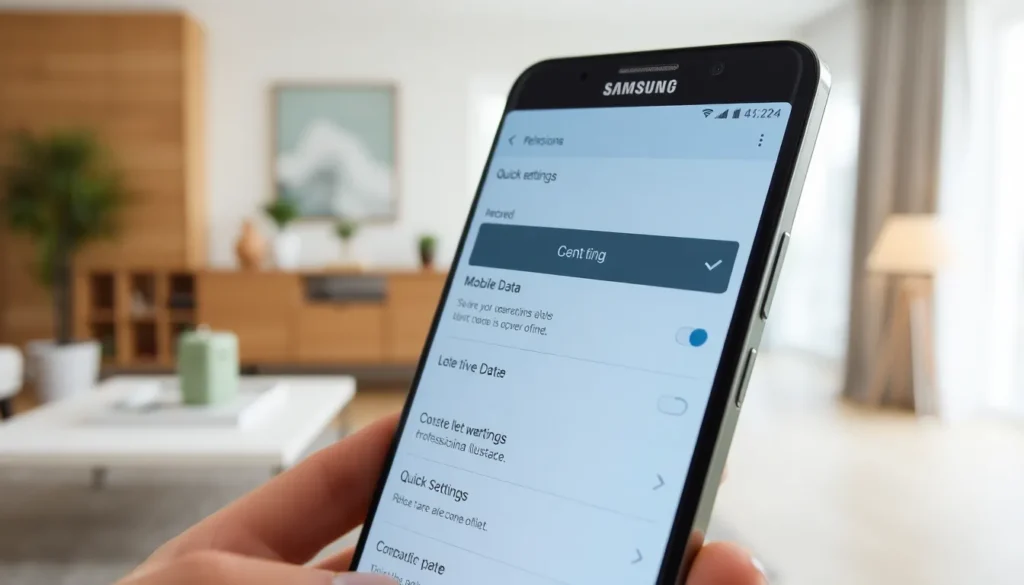
Accessing mobile data settings on Samsung devices is straightforward and efficient. Users can quickly manage cellular data to stay connected.
Using Quick Settings
Tap the Quick Settings panel by swiping down from the top of the screen. Locate the mobile data icon; it’s usually represented by two arrows. Tap the icon to turn mobile data on; the icon will light up, confirming activation. For toggling data off, simply tap the icon again. This method provides immediate access, allowing users to connect without navigating complex menus.
Navigating Through Settings App
Open the Settings app by locating the gear icon on the home screen or app drawer. Scroll down to Connections and select it. Choose Mobile Networks from the options provided. Toggle mobile data on by switching the corresponding setting to the on position. Accessing advanced options allows users to set data limits and manage background data, enhancing overall user experience.
Turning On Mobile Data
Activating mobile data on a Samsung device ensures constant internet access, particularly where Wi-Fi isn’t reliable. Following these steps makes the process simple.
Confirming Connection
Check the mobile data icon, typically located in the Quick Settings panel. When this icon is highlighted, mobile data is active. Users can also confirm by accessing the Settings app. In Connections, selecting Mobile Networks shows whether mobile data is turned on. Observing the status of your data connection frequently helps maintain a stable online experience. Screen indicators may provide added insight about signal strength and data availability. If issues arise, toggling the mobile data icon off and back on resolves common connectivity problems. Regularly ensuring that mobile data functions efficiently enhances overall user satisfaction.
Troubleshooting Mobile Data Issues
Mobile data issues can arise, impacting connectivity and usability. Identifying and resolving these problems ensures a reliable online experience.
Common Problems and Solutions
Users often face problems like slow speeds or dropped connections when using mobile data. Checking network coverage helps pin down issues, as weak signals can lead to these problems. Adjusting device settings can resolve many common issues. Switching from 4G to 5G enhances performance when available. Restarting the device works effectively for establishing a fresh connection. Updating the device software is crucial for optimal functionality. Lastly, resetting network settings can clear any lingering connectivity problems, restoring reliable mobile data access.
When to Contact Support
Some situations warrant contacting support for assistance. Persistent connectivity issues, despite troubleshooting efforts, indicate a possible network problem. Unexplained data charges may suggest a problem with the device settings or carrier plan. Users should reach out if their device does not connect to mobile data after a software update. Accessibility concerns involving limited service areas also require professional input. Lastly, malfunctioning SIM cards necessitate a call for support, ensuring users gain a stable connection to mobile networks.
Mastering mobile data activation on Samsung devices is crucial for maintaining seamless connectivity. Whether navigating through urban areas or exploring remote locations users can rely on mobile data to stay connected. Understanding the settings not only enhances performance but also helps in managing data usage effectively.
By knowing how to toggle mobile data on and off users can optimize their experience based on their needs. It’s important to choose the right data plan to suit individual usage patterns ensuring that connectivity remains uninterrupted.
With the right knowledge and tools users can enjoy a reliable online experience no matter where they are.

